
In Affiliate Catalog mode, each product page shows a button that links to another website, such as an affiliate store or marketplace. You can use the same link for all products or set a different link for each product. See Choose a Catalog Mode to compare it with the other modes.
Enable Affiliate Catalog mode
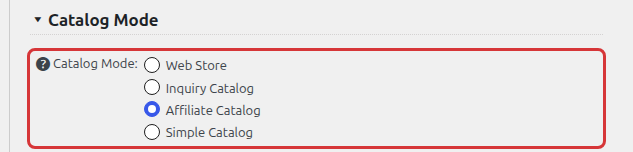
Go to Products > Settings > General Settings, select Affiliate Catalog in the Catalog Mode section and save the settings:
After you enable it, a new Affiliate Button screen appears in the General Settings menu:
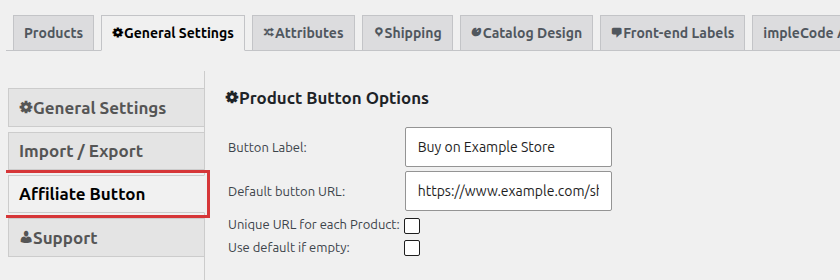
All the affiliate button settings are on this screen. Click Save changes after you change them.
Customize the button label
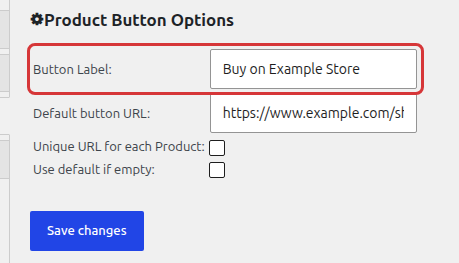
Set the button text in the Button Label field. The default label is Read More.
Set the default button URL
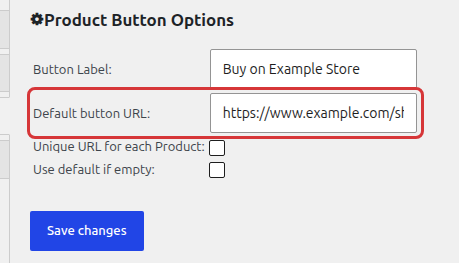
Enter the link in the Default button URL field. When you don’t use unique URLs, every product button links to this address.
Add a different link to each product
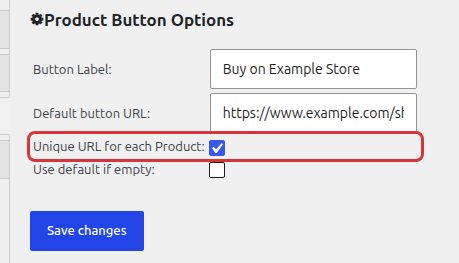
Check Unique URL for each Product to set a separate link per product:
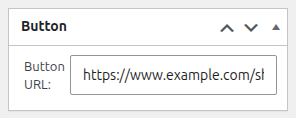
A new Button box with a Button URL field then appears on each product edit screen:
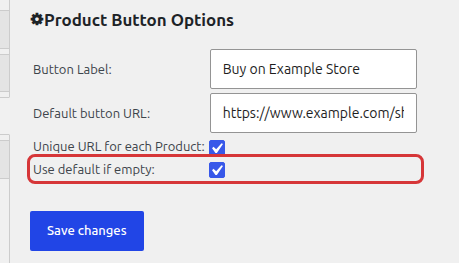
With unique URLs enabled, a product without its own Button URL shows no button. To use the default URL for those products, also check Use default if empty:
Where the button shows up
The affiliate button appears on single product pages. It is not shown on product listings, and it is not shown at all when the product has no URL to link to.
If you don’t need an external button, you can show products without any call to action in the Simple Catalog mode. See Product Catalog without Shopping Cart for other options.