
By default on plugin activation the [show_product_catalog] shortcode (or the Show Catalog block) is added to the main product listing page. This disables the integration wizard and you will see the following in the Catalog Layout Integration section of General Settings:
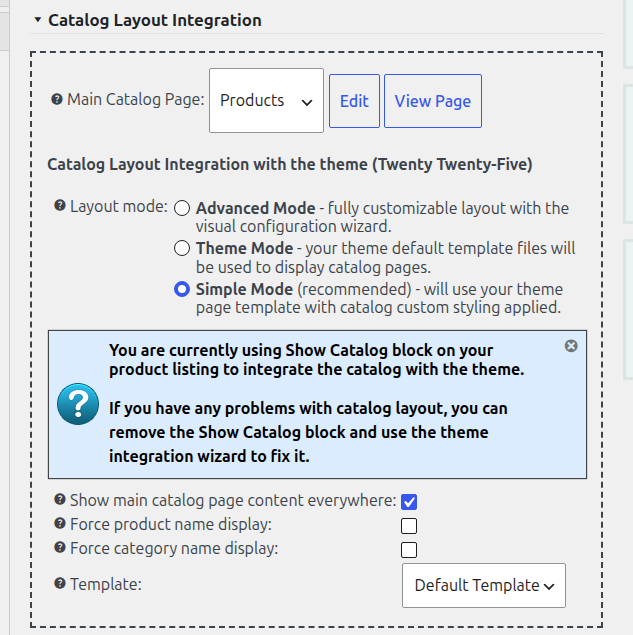
To proceed with the theme integration, click the Remove the Shortcode and Start the Wizard button.
Theme integration wizard is a smooth way to integrate your theme with eCommerce Product Catalog in case it doesn’t work correctly with the shortcode integration.
Edit Integration Settings
You can edit the integration settings at any time after the theme integration is done. These settings can be found in Products > Settings > General Settings, in the first section called Catalog Layout Integration, when Advanced Mode is selected:
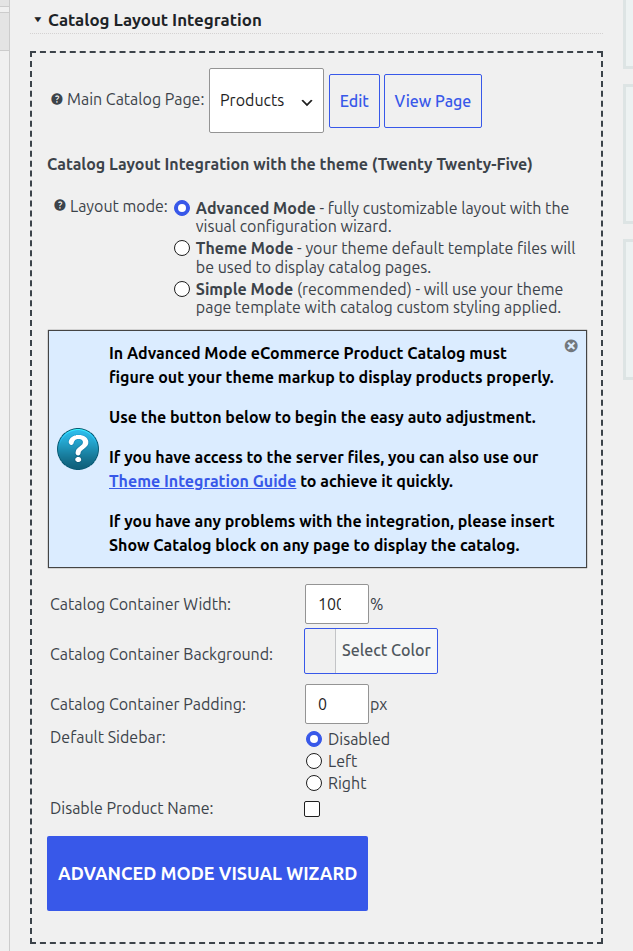
The following options are available:
- Layout mode – switch between Simple Mode, Advanced Mode and Theme Mode;
- Catalog Container Width – the width of product catalog to match your theme content width, this is the max width and it will be adjusted automatically for lower screens;
- Catalog Container Background – change the catalog background to match your theme style
- Catalog Container Padding – sometimes this will be more handy than container width option, especially when you enable the sidebar. If sidebar is enabled it will be applied also to the sidebar container.
- Default Sidebar – Disabled, Left or Right; the first theme sidebar will be enabled on product catalog pages if set to left or right, use Premium Toolset addon to enable separate product sidebar
- Disable Product Name – some themes show the product name twice. Check this checkbox to show it only once.
Restart Integration Wizard
You can restart the wizard at any time. Click the Advanced Mode Visual Wizard button in the Catalog Layout Integration section. Inside the wizard, the Restart Advanced Mode Test button starts the test again.
What if the theme integration wizard doesn’t work with my theme?
There are some themes that will not work nicely with automatic integration. Especially those with unusual markup.
In such case try to use the [show_product_catalog] shortcode or the Show Catalog block on your main catalog page, or another integration method.
If this still doesn’t help it will be necessary to do manual theme integration. You can do it yourself with theme integration guide or ask eCommerce Product Catalog developers to do it for you (the service is free of charge once you have a license for any extension).