
To show main categories before the product listing, go to Products > Settings > General Settings and find the Main listing shows setting in the Main listing page section.
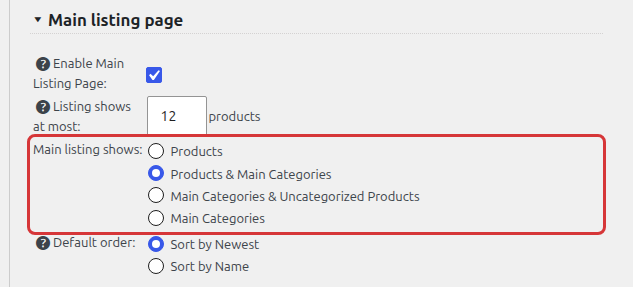
You can select Products, Products & Main Categories, Main Categories & Uncategorized Products or Main Categories.
Display Only Products
Select the ‘Products’ option to make only products visible on the main listing. Even if you have any categories they won’t be displayed on the listing.
You can use [show_categories] shortcode to display the categories elsewhere.
Display Main Categories and Products
With the ‘Products & Main Categories’ option selected the top level categories will be displayed on the top of the main catalog page. Products will be also displayed on the bottom of the page.
Click on a category (if there are any categories) to see the category page which will also display subcategories (if there are any) so the user can navigate through the catalog structure.
The products will be displayed on the category page, however this actually depends on the ‘Category Page shows’ setting.
Display Main Categories and Uncategorized Products
Select the Main Categories & Uncategorized Products option to show the top level categories and, below them, only the products that are not assigned to any category. Products assigned to a category are shown on its category page.
Display only Main Categories on main catalog listing page
Select the Main Categories option to make only top level categories visible on the main catalog page.
Use it in conjunction with the ‘Category Page shows’ setting to manage what the user will see on category pages.
To show categories as simple links instead of the listing template, see Display categories as links. All category display options are also described in General Settings.