
You can create orders from the admin dashboard in the Web Store mode.
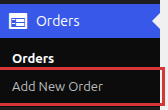
To do it, open the Orders menu and click Add New Order.
The Add New Order screen will show up:
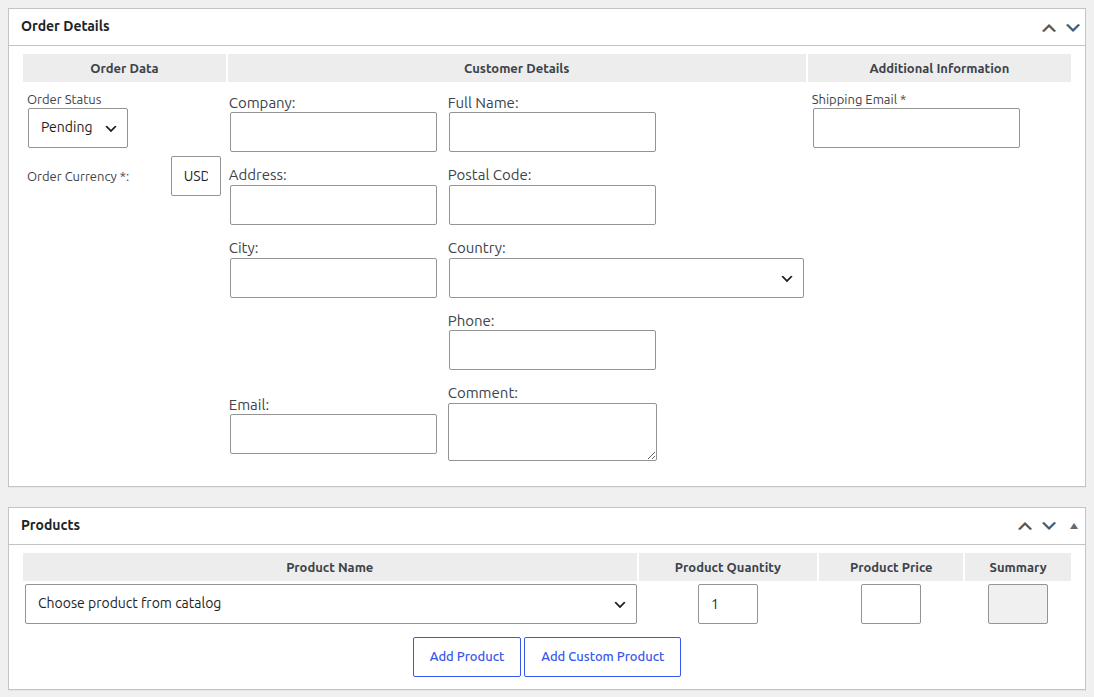
Order Data
In this column you can:
- Set the Order Status to Pending, Shipped or Complete.
- Set the Order Currency.
Customer Details
This column shows the fields of your checkout form: Company, Full Name, Address, Postal Code, City, Country, State, Phone, Email and Comment. Fill them in with the customer’s data. If you customize the checkout form, for example with Shopping Cart PRO, the fields of your form show up here.
The Additional Information column holds the required Shipping Email.
Products
Select a product in Choose product from catalog. The product price and summary fill in automatically. You can change the product price and quantity according to your needs.
Click Add Product to add another product from the catalog, or Add Custom Product to add an item that is not in your catalog.
Summary
The Summary box on the right shows the order total as soon as you save the order. Enter the customer email in its Email field. When a customer account is created for the order, this email is used as the user name and the account credentials are sent to it.
Click Publish to save the order.
The customer email address links the order to a customer account. When customer accounts are enabled (Remember fields by set to User Account in the shopping cart settings) and the order is set to Complete, an account is created for this email address if it doesn’t exist yet. See Customer Accounts.
All orders, including the ones created in the admin, are listed on the Admin Orders Screen.