
The Show Catalog block displays the main catalog listing page content.
If you place the Show Catalog block on your main catalog page (this page is selected in the Main Catalog Page setting in General Settings) the layout for all the catalog pages will be the same as the one defined for the main catalog page.
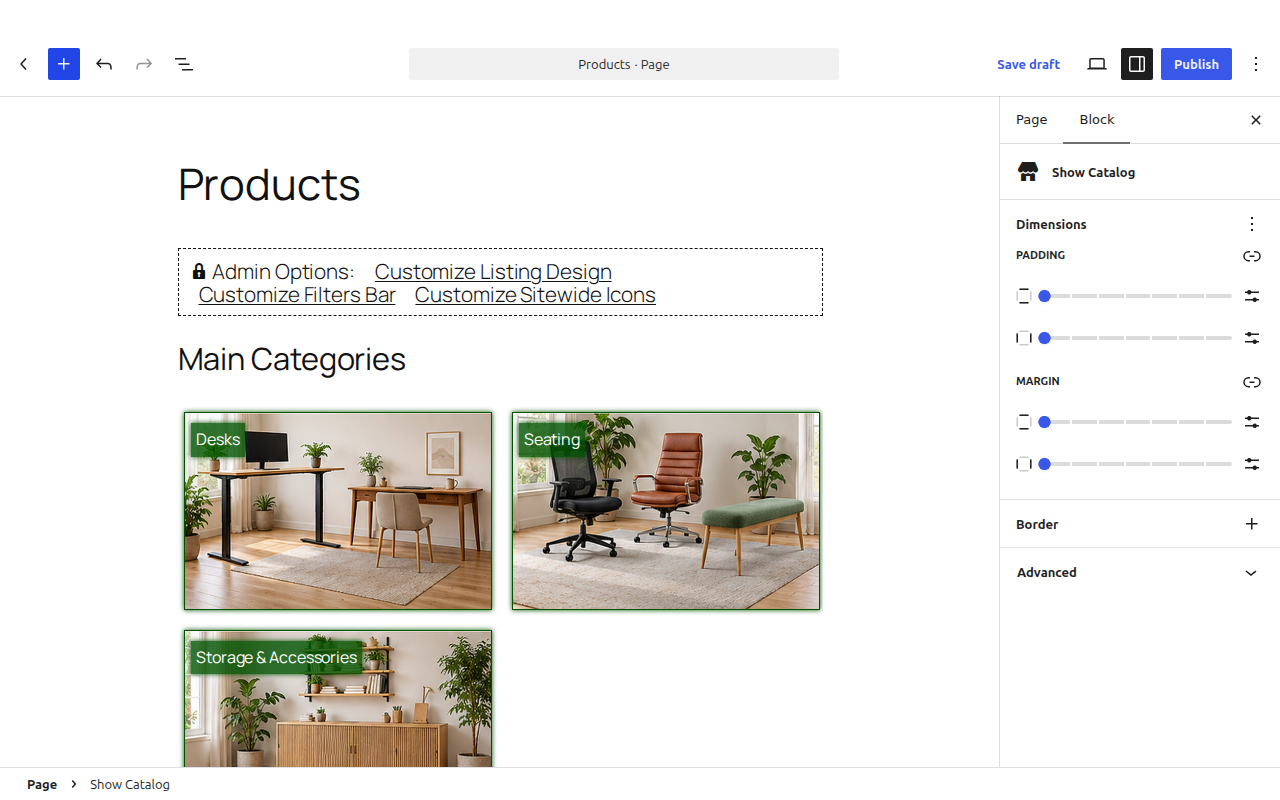
Block integration settings
If you place the Show Catalog block on the main listing page the following options will appear in the Catalog Layout Integration section of the General Settings screen:
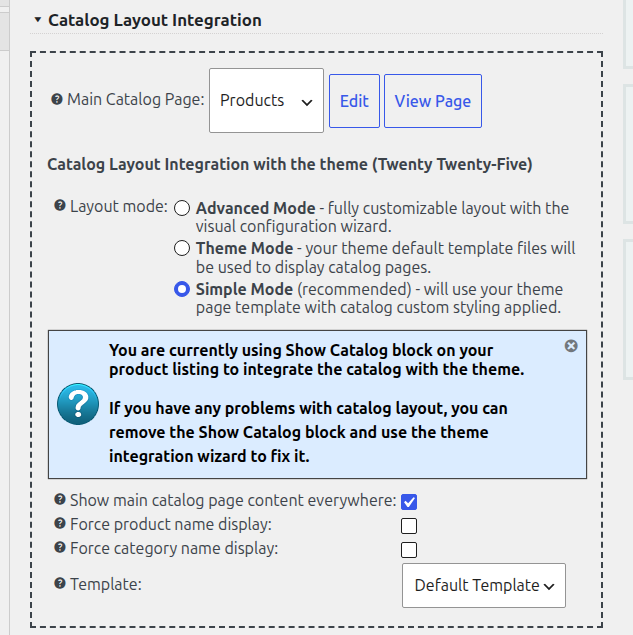
- Show main catalog page content everywhere – this one is useful if you want to display all the content placed in the main listing page on all catalog pages. It can be any content text or HTML. This way you can also use page builders to build your catalog markup.
- Force product name display – some themes will not display the product name correctly. When you check this checkbox it will be shown by the plugin. Uncheck it if you see the product name twice.
- Force category name display – the same for the category name on category pages.
- Move breadcrumbs to the top – displays the breadcrumbs before the page title; it may require some additional styling. This option shows up only when the catalog breadcrumbs are enabled.
Using block integration with a page builder
You can even use a page builder to build the layout of the catalog with the block integration.
The block will be always replaced with the correct content for the currently viewed catalog page but all other text/html placed on the main catalog page will be the same for all catalog pages (you should check the Show main catalog page content everywhere checkbox).
You can use the [show_product_catalog] shortcode in the same way. If you don’t want to use the Show Catalog block, see the other catalog theme integration methods. With a block theme you can also edit the catalog templates in the Site Editor, see Product Page Blocks and Catalog Templates.