
Attribute tooltips let you add a short explanation to any attribute name. On the front-end a small question mark icon appears next to the attribute name. Clicking it shows your explanation, for example how a dimension is measured or what a material includes.
Tooltips work for the default attributes table and for every attribute group.
Add a tooltip in the attribute settings
Go to Products > Settings > Attributes. The attribute defaults table and each attribute group table have a Tooltip column with an Add tooltip button for every attribute.
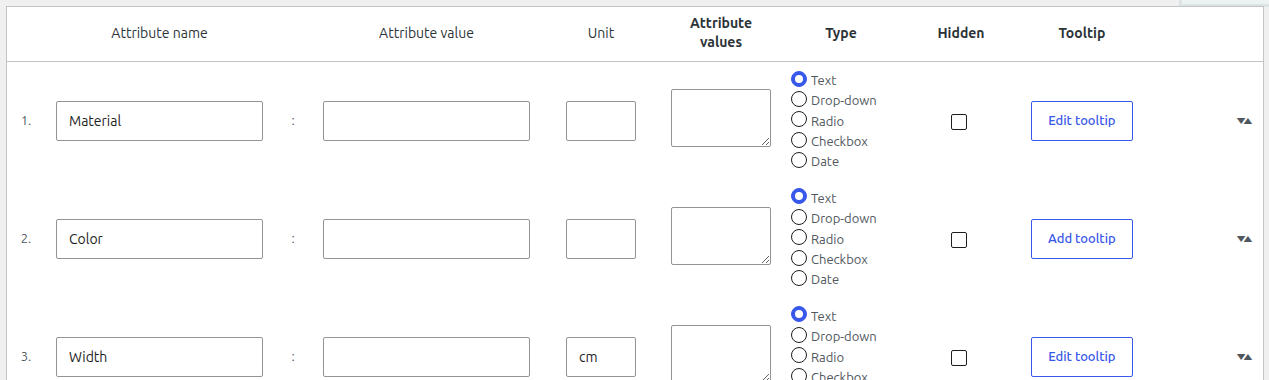
- Click Add tooltip next to the attribute name.
- Type the explanation in the popup and click Save.
- Click Save changes at the bottom of the settings page. The tooltip is stored only when you save the page.
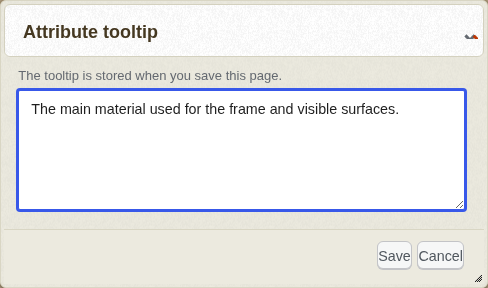
Once an attribute has a tooltip, its button changes to Edit tooltip. To remove a tooltip, open it, clear the text, click Save and save the settings page.
Tooltips are plain text. HTML tags are removed, and line breaks are not kept on the front-end.
Where tooltips can be edited depends on the attributes source
The Attributes source option in the same settings screen decides whether tooltips can also be set per product:
- Attribute names and values set per product – tooltips can be edited in the settings and on the product edit screen. A tooltip set on the product is used for that product. If the product has no tooltip, the tooltip from the settings is used, but only when the product still uses the default attribute name in that row.
- Global attribute names with values set per product – tooltips can be edited only in the settings. The product edit screen has no tooltip column.
- Global attribute names and values for all products – tooltips can be edited only in the settings. The product edit screen has no tooltip column.
If you switch from per-product names to global names, tooltips saved on products are kept but ignored. They are used again when you switch back.
Add a tooltip for a single product
With Attribute names and values set per product selected, the Product Attributes box and each attribute group box on the product edit screen have a Tooltip column.
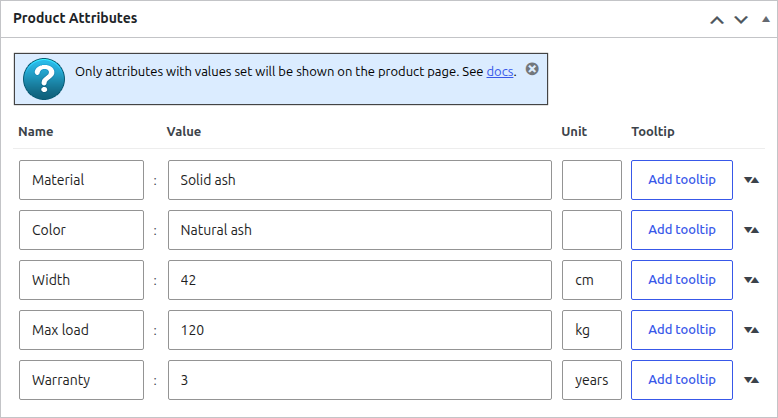
Click Add tooltip, type the text, click Save and then Update the product. The popup shows the tooltip from the settings as a hint when the product inherits it.
When you reorder the attributes by dragging the rows, the tooltips move together with their attribute names.
How tooltips show up on the front-end
The question mark icon appears next to the attribute name in the product page attributes table and in each attribute group table. Visitors open the tooltip by clicking the icon and close it by clicking again, clicking elsewhere on the page or pressing Escape.
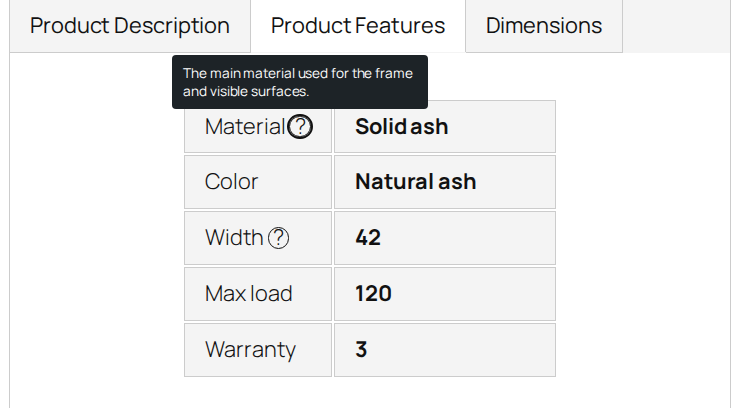
Attributes without a tooltip show no icon. Plans tables that list product attributes show the tooltip in the attribute name column the same way. Each attribute row in such a table is shared by all products in it, so the row uses the first tooltip found among the listed products.