
The Product Color Picker extension lets customers choose a product color from color swatches on the product page. Each color can be a solid color or a texture image, and it can have its own name and its own product image.
The Product Colors box can be found on every product edit/add screen.
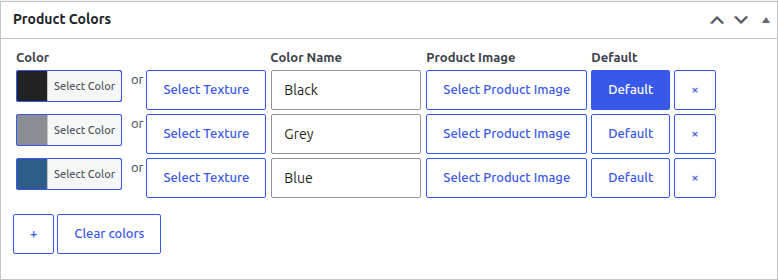
Adding product colors
Every row in the Product Colors box is one color. For each color you can set:
- Color – click Select Color to pick the color, or type its hex code, for example #2f5d8a
- Select Texture – use an image instead of a solid color, for example a fabric or wood sample. Click the texture image to remove it and go back to the color picker
- Color Name – the name customers see, for example Blue. The name is also shown in the cart, in the order and in the order emails. If you leave it empty, the color code is used as the name
- Product Image – an optional image of the product in this color. It replaces the main product image when the customer points at or clicks the color. Click the image to remove it
- Default – makes this color selected when the product page loads. See Default color below
Use the + button to add another color and the × button to remove a color. The Clear colors button removes all colors from the product. The changes are saved when you update the product.
Rows without a color, texture, name or image are skipped when the product is saved. A color code entered without the leading # is corrected automatically, so 2f5d8a is saved as #2f5d8a.
Default color
Setting a default color is optional:
- Click Default next to a color to make it the default. Only one color can be the default
- Click the highlighted Default button again to remove the default
When a product has a default color, that color is selected when the product page loads. When there is no default color, no color is selected and the customer must choose one before checkout (see Choosing a color before checkout).
Colors on the product page
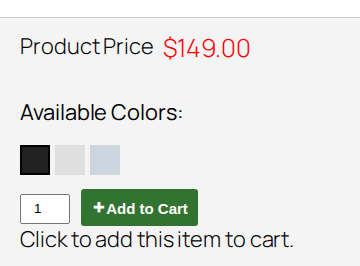
The colors are shown as swatches under the Available Colors: label. In the Web Store and Inquiry Catalog modes they appear above the add to cart or add to quote button. In the Catalog mode they are shown in the product details.
When the customer points at a color, a larger preview with the color name is shown. If the color has a product image, the main product image changes to it.
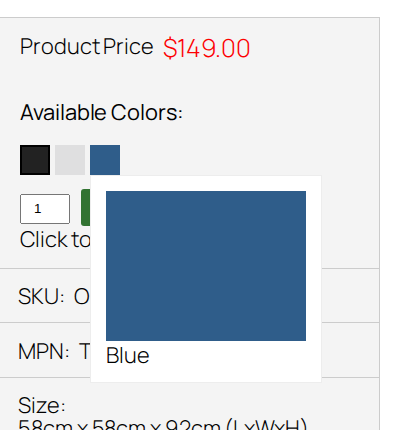
Clicking a color selects it. The selected color is added to the cart together with the product.
Choosing a color before checkout
Customers can add a product to the cart without choosing a color. Before they can go to checkout, every product with colors in the cart must have a color selected. Colors can be selected or changed directly on the cart page. See Product Colors in Cart and Checkout for details.
Changing the colors label
The Available Colors: label can be changed in Products > Settings > Front-end Labels > Single Item Page in the Color Selector field. The same label is used before the selected color in the order notification emails.