
When the Product Color Picker extension is active together with the Web Store or Inquiry Catalog mode, the color selected by the customer is saved with every cart item and order.
Color in the cart
The cart shows the color swatches below the product name. The selected color is highlighted. The customer can click another color to change it before checkout.
Every product line in the cart has its own color. Products without colors are not affected.
Choosing a color before checkout
Customers can add a product to the cart without choosing a color, for example when the product has no default color. A color must be chosen before checkout:
- When the customer tries to continue to checkout with a missing color, they are sent back to the cart
- The cart shows the Please choose product variations. message and highlights the products that still need a color
- After the customer selects the missing colors, they can continue to checkout
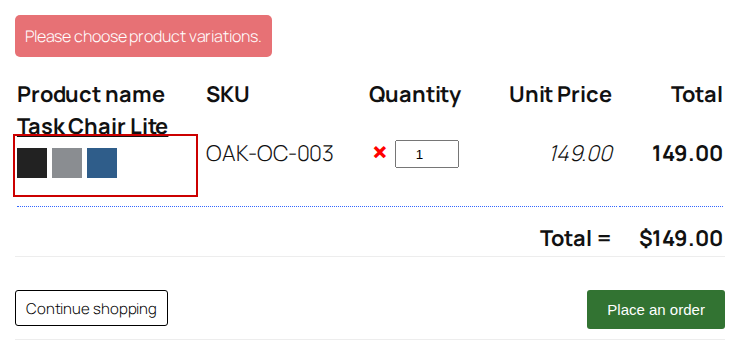
This works the same way as required product variations and applies to both the shopping cart checkout and the quote request form.
If the cart and the checkout are set to the same page, the customer is not redirected. The cart page still asks for the missing color before the form can be submitted.
Color in orders and emails
The selected color name is saved with the order:
- The order summary at checkout shows the selected color below the product name
- The order notification emails add the color after the product name, for example Task Chair Lite – Available Colors: Blue. The label comes from the Color Selector field in Products > Settings > Front-end Labels > Single Item Page
- The order screen in the admin shows the color in brackets after the product name, for example Task Chair Lite (Blue)