
Premium Toolset adds a green New label to recently published products on the product listing. It also adds a New Products Filter widget that shows only these products. Both use the same New product time setting.
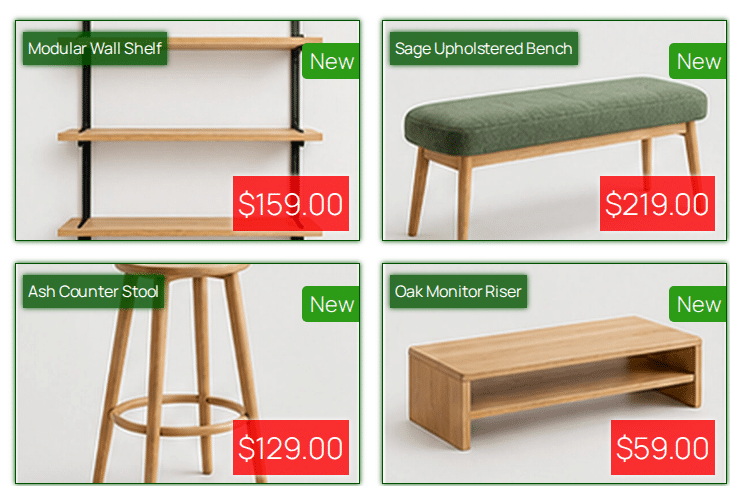
When a product is considered new
A product is new when its publication date is within the selected number of days. The default is 7 days. After that time the label disappears automatically and the product is no longer included in the new products filter.
The label is based on the product publication date, not on the last modification date. If many products show the label at once, check their publication dates in Products > All Products. Products imported, duplicated or re-published recently get a new publication date, so they are all considered new.
Change the number of days or disable the New label
- Go to Products > Settings > General Settings.
- Find the Additional Settings section.
- Set New product time to the number of days a product should stay new.
- To disable the New label completely, set New product time to 0.
- Click Save changes.
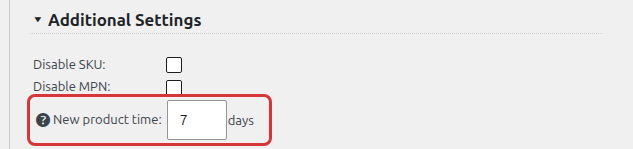
Setting the value to 0 removes the New label from all products and also hides the New Products Filter widget, because no product is considered new.
Updating from an earlier version? Check the New product time value after the update. In earlier versions, saving the General Settings could reset it to 7 days, which made the New label appear again even if you had disabled it.
Hide only the label
To keep the New Products Filter but hide the label on the listing, add this CSS in Appearance > Customize > Additional CSS (or in your theme stylesheet):
.ic-product-new:before,
.table-listing-element.ic-product-new .product-name a:after {
	display: none !important;
}
Change the label text or color
The label is added with CSS, so you can restyle it the same way. For example, to change the text and color:
.ic-product-new:before,
.table-listing-element.ic-product-new .product-name a:after {
	content: “Just arrived”;
	background: #c0392b;
}
New products filter widget
Add the New Products Filter widget to the product filters bar or any other widget area available on your product listing. Visitors can use it to display only the new products. The widget shows the number of new products in the current listing and uses the same New product time setting.